
How to Use RedTrack: Setup, Tracking & Campaign Guide
RedTrack is a marketing analytics and conversion tracking platform that helps affiliate marketers, media buyers, and ecommerce teams see exactly where clicks, conversions, and revenue come from. If you are new to the tool, the interface can feel dense at first, but the core workflow is straightforward: connect a traffic source, connect an offer source, add an offer, create a campaign, and send the campaign URL to your ad network.
This guide walks through the full RedTrack setup process, explains how postback tracking works, and shares practical tips for keeping your data clean as your campaigns scale.
What RedTrack Does
How to Use RedTrack: Setup, Tracking & Campaign Guide - What RedTrack Does.
RedTrack sits between your ad network and your affiliate or ecommerce offer. When a user clicks your ad, they pass through a RedTrack tracking link first. RedTrack records the click, forwards the visitor to the offer, and then waits for a conversion signal from the affiliate network or your own website.
That conversion signal is called a postback, or server-to-server (S2S) postback. It lets RedTrack match a conversion back to the exact click, traffic source, campaign, and creative that produced it. Without a postback, you only see clicks. With it, you see the full path from ad spend to revenue.
Step 1: Create Your RedTrack Account
How to Use RedTrack: Setup, Tracking & Campaign Guide - Step 1: Create Your RedTrack Account.
Start by signing up on the RedTrack website. The onboarding flow asks for basic details such as your name, email, and company. Once your account is active, you land in the main dashboard.
Before configuring anything, take a few minutes to explore the left-hand navigation. The key sections you will use most often are:
- Traffic channels — where you add ad networks such as RichAds, PropellerAds, or Meta.
- Offer sources — where you add affiliate networks or your own store.
- Offers — individual CPA offers, products, or landing pages you want to track.
- Campaigns — where traffic sources and offers are combined into a single tracking link.
- Reports — where you analyze clicks, conversions, revenue, and ROI.
Step 2: Add a Traffic Channel
How to Use RedTrack: Setup, Tracking & Campaign Guide - Step 2: Add a Traffic Channel.
A traffic channel is the ad network that sends visitors to your offer. RedTrack includes templates for many popular networks, which saves you from manually entering postback parameters and macros.
To add one:
- Open Traffic channels in the left menu.
- Click New from template.
- Type the network name in the search bar, such as "RichAds" or "RichPush".
- Click Add next to the correct template.
- Review the pre-filled macros and click Save.
If your network is not in the template list, choose the custom option and enter the click ID macro your network supports. Most networks use a parameter such as {clickid} or {click_id} that RedTrack must pass through the tracking link.
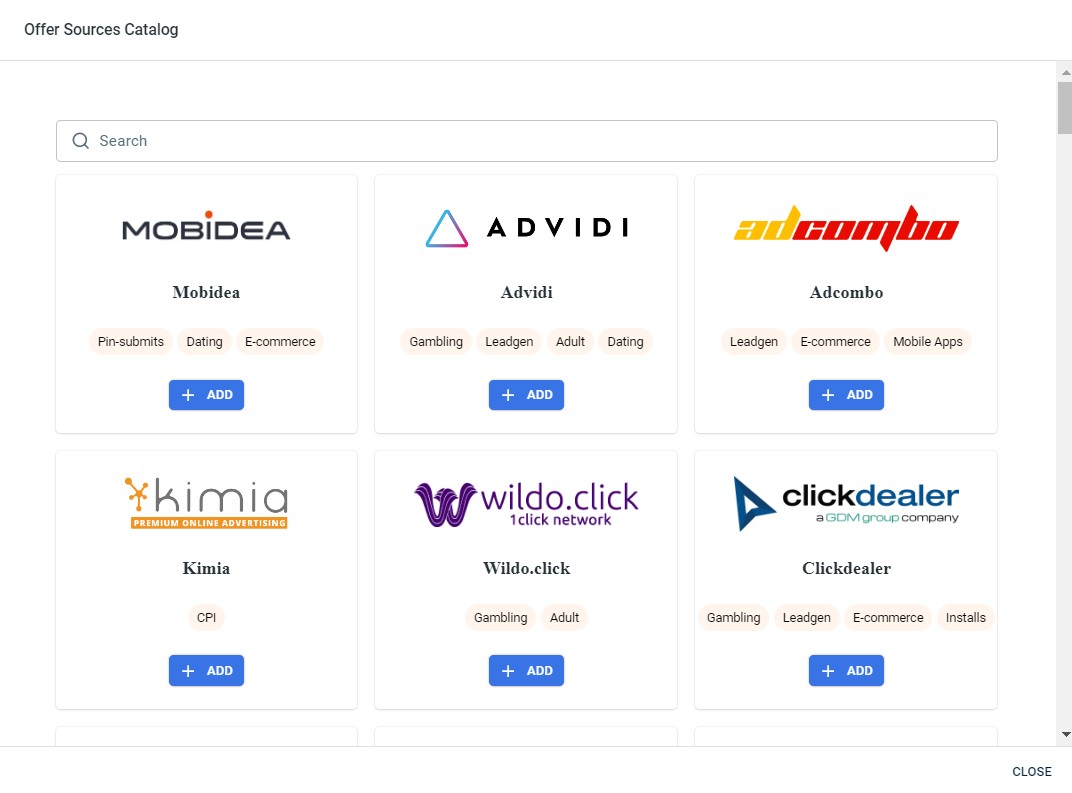
Step 3: Add an Offer Source
An offer source is where your conversions are recorded. For affiliate marketers, this is usually a CPA network such as LeadBit, Mobidea, or Zeydoo. For ecommerce teams, it can be your Shopify store or a custom postback endpoint.
To add an offer source:
- Open Offer sources in the left menu.
- Click New from template.
- Search for your affiliate network by name.
- Click Add.
- On the configuration page, copy the Postback URL that RedTrack generates.
- Click Save.
Keep that postback URL handy. You will paste it into your affiliate network's offer settings in the next step.
Step 4: Configure Postback Tracking in Your Affiliate Network
Postback setup is the step most beginners get wrong, but it is also the most important. The flow works like this:
- RedTrack generates a unique click ID for every visitor.
- The click ID is passed to the affiliate network through your tracking link.
- When a conversion happens, the affiliate network fires the postback URL back to RedTrack.
- RedTrack records the conversion and attributes it to the original click.
To set this up in your affiliate network:
- Find the offer you want to promote.
- Open the offer's tracking or postback settings.
- Paste the RedTrack postback URL you copied earlier.
- Make sure the network's conversion token or payout parameter is included in the URL.
- Save the changes.
Many networks let you fire postbacks on multiple actions, such as leads, confirmed sales, or upsells. If your network supports it, set up separate postbacks for each action so RedTrack can report them accurately.
Step 5: Add an Offer in RedTrack
Now return to RedTrack and add the offer itself:
- Open Offers in the left menu.
- Click New.
- Enter a clear offer name.
- Select the offer source you created in Step 3.
- Paste the offer's tracking URL from your affiliate network into the URL field.
- Append the click ID macro to the URL. It usually looks like
sub1={clickid}or&click_id={clickid}depending on the network. - Click Save.
The click ID macro is critical. If it is missing, RedTrack cannot match conversions back to clicks, and every conversion will show as unattributed.
Step 6: Create a Tracking Campaign
The campaign is where everything comes together. It connects one traffic channel with one or more offers and produces the final tracking link you paste into your ad network.
To create a campaign:
- Open Campaigns in the left menu.
- Click New.
- Name the campaign clearly, such as "RichAds - US - LeadBit Sweepstakes".
- Select the traffic source from the drop-down list.
- Select the offer you want to track.
- Click Save.
- Copy the URL from the Tracking links and parameters field.
Paste that campaign URL into your ad network's destination URL field when you create your ad. From that point on, every click passes through RedTrack before reaching the offer.
Step 7: Verify Your Tracking Setup
Before scaling spend, always test the full flow:
- Click your own campaign URL.
- Confirm the visitor lands on the correct offer page.
- Complete a test conversion if the network allows it.
- Wait a few minutes and check the RedTrack campaign report for the click and conversion.
If the click appears but the conversion does not, check three things: the postback URL in the affiliate network, the click ID macro in the offer URL, and whether the network requires a specific postback format such as JSON or GET.
How RedTrack Fits Into a Broader Research Workflow
RedTrack tells you what happens after the click. But before you spend money on traffic, you need to know which offers, angles, and creatives are worth testing. That is where ad intelligence tools come in.
PrimeSpy is a multi-platform ad spy tool that helps marketers discover winning ads, analyze competitor creatives, and find product ideas across Facebook, TikTok, and Meta Ad Library. You can search by keyword, URL, or advertiser, filter by ad metrics such as reach and spend, and track daily top products. When you combine PrimeSpy's competitive research with RedTrack's conversion data, you shorten the feedback loop: PrimeSpy shows what is already working in the market, and RedTrack confirms whether it works for your specific traffic and offer combination.
For teams evaluating multiple tools, see how PrimeSpy compares with other ad intelligence platforms in our PrimeSpy vs Winning Hunter vs Adplexity Social breakdown.
Common RedTrack Mistakes to Avoid
Missing Click ID Macro
If your offer URL does not include {clickid} or the network-specific equivalent, RedTrack records clicks but cannot attribute conversions. Double-check this field every time you add a new offer.
Skipping Postback Testing
Many affiliates launch campaigns before verifying the postback fires correctly. A five-minute test conversion can save you from days of misleading data.
Using Vague Campaign Names
When you run dozens of campaigns, names like "Test 1" become useless. Include the traffic source, geo, offer type, and date in every campaign name.
Ignoring Cost Data
RedTrack can pull cost data from some traffic sources automatically. If your network supports cost passback, enable it. Otherwise, update costs manually so ROI reports are accurate.
Related reading
- PrimeSpy vs Winning Hunter vs Adplexity Social - Compare PrimeSpy, Winning Hunter, and Adplexity Social on pricing, platform coverage, ecommerce data, and workflow fit. Find the right ad spy tool for your team.
- PrimeSpy vs Swipekit: Which Ad Tool Wins in 2026? - Compare PrimeSpy and Swipekit for ad intelligence, competitor tracking, creative research, and pricing. See which platform fits your workflow in 2026.
- SellerCenter Review 2026: Honest Verdict for Shopify Dropshippers - Hands-on SellerCenter review: product research, competitor tracking, ad spy features, pricing signals, and who should use this Shopify dropshipping tool vs skip it.
Sources and further reading
- RedTrack Tutorial for Newbies | Marketing Analytics Platform Setup & Demo - In this beginner tutorial and training video, we show you how to install and use RedTrack CRM software. We show you how to create an account and get started...
Frequently Asked Questions
Is RedTrack free to use?
RedTrack offers a trial period for new users, after which you choose a paid plan based on your monthly click volume. Check the official RedTrack pricing page for current plans and limits.
What is the difference between a traffic channel and an offer source?
A traffic channel is where your visitors come from, such as an ad network. An offer source is where your conversions are recorded, such as an affiliate network or your own store. RedTrack connects the two through a campaign.
How do I fix conversions that are not showing in RedTrack?
First, confirm the postback URL is correctly pasted in your affiliate network. Second, verify the click ID macro is present in your offer URL. Third, check whether the network requires a specific postback format. If all three are correct, contact RedTrack support with a test click ID.
Can I track my own ecommerce store with RedTrack?
Yes. Instead of an affiliate network, you set up your store as the offer source and install RedTrack's conversion tracking script or use a server-side postback. RedTrack's help documentation covers Shopify, WooCommerce, and custom integrations.
Does RedTrack work with TikTok and Facebook ads?
Yes. RedTrack supports major social ad platforms as traffic channels. You can use RedTrack tracking links in your ad destination URLs to capture click and conversion data alongside native platform analytics.
Conclusion
RedTrack is a powerful conversion tracking platform once you understand its four core building blocks: traffic channels, offer sources, offers, and campaigns. The setup order matters. Add your traffic source first, then your offer source, then the offer with the correct click ID macro, and finally the campaign that ties them together.
For a deeper walkthrough of the interface and account setup, the official RedTrack Help Center covers frequently asked questions and platform-specific guides. If you are connecting a specific ad network, vendor tutorials such as the RichAds RedTrack postback guide show the full integration flow step by step.
Once your tracking is live, pair RedTrack's conversion data with ad research from PrimeSpy to find proven angles faster and validate them with your own performance data. For a closer look at how PrimeSpy stacks up against other ad spy tools, read the PrimeSpy vs Swipekit comparison.